Showing posts with label photoshop. Show all posts

Monday, June 10, 2013

Photoshop Tutorial: Faking Angles

Some people have a SLR with a huge array of lenses, able to catch every angle, even the wide ones.

I am not some people.

Working with a kit 18--55mm lens I've come up with a couple tricks along the way to fake the wide angle close ups that my lens just won't do. I thought I would share one of the simple Photoshop tricks today.

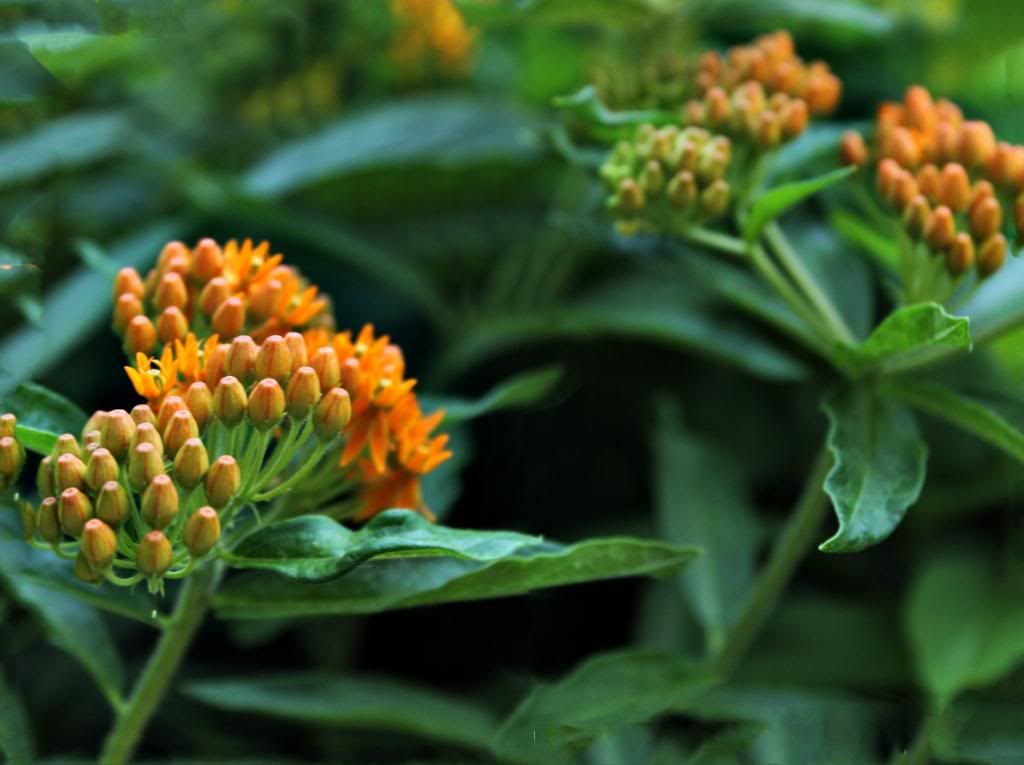
Say you're taking close-ups of your favorite flower:
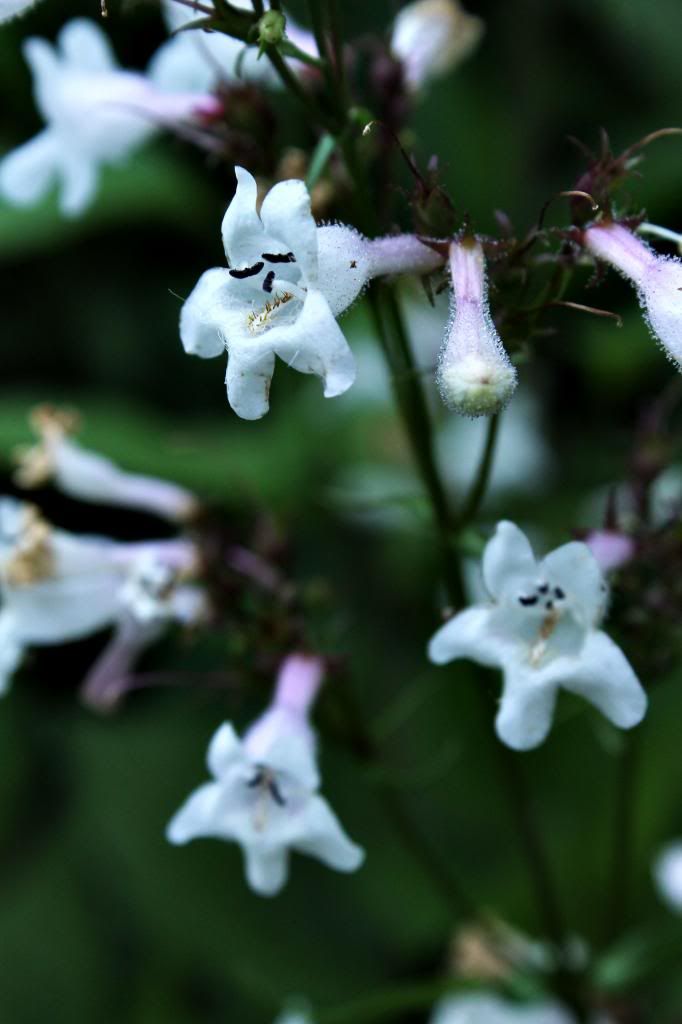

You like it, but you wish that you could include more of the flower's surroundings-- while keeping the nice blurry background. Now if I zoomed out, I would lose the blurry background.
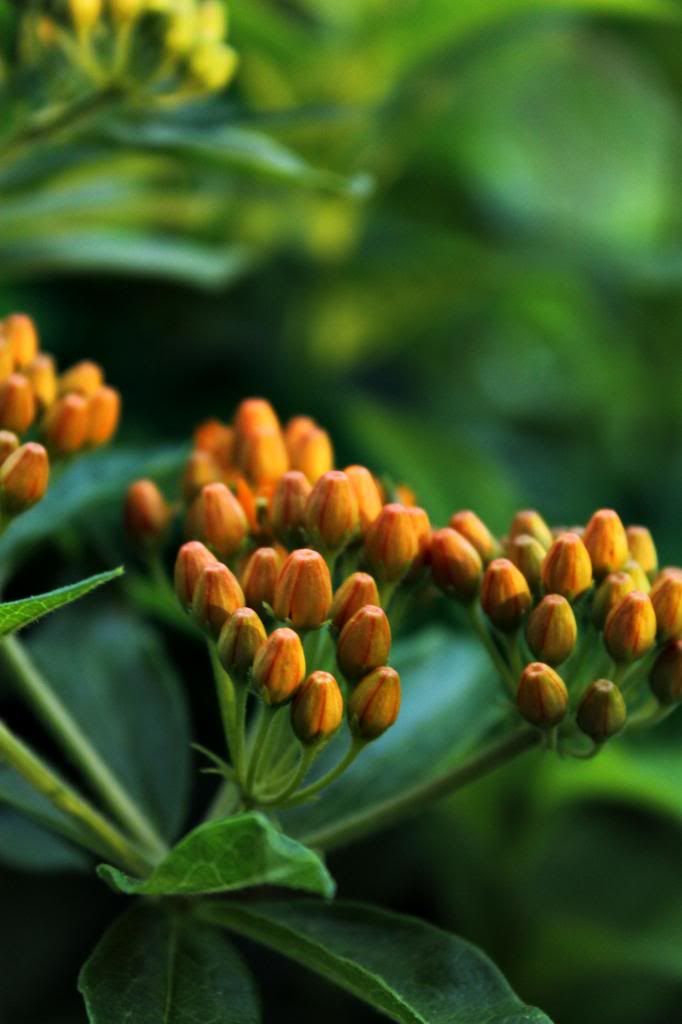

There is more to this scene that you can see in this narrow snapshot. So what did I do? I took multiple photos, moving my camera to get a new part of the background with each picture.

TIP: Do not do what I did and become trigger happy. I barely moved my camera an inch to the left (or whatever direction) before snapping another photo. Try moving the camera more than that. Make sure that your new photo will overlap the previous one, but try to minimize the overlap. Photoshop gets really confused with you give it ten photos that are almost identical.

Step One:

Take the photos, like described above. If you're photographing a tall flower then you might take five photos, each time tilting the camera more up to get the rest of the flower.

Step Two:

Open trusty Photoshop. Go to File-->Automate-->Photomerge. For now, keep the default settings-- Layout should be on auto. Now, upload your five or so photos you took and click 'okay'.

Step Three:
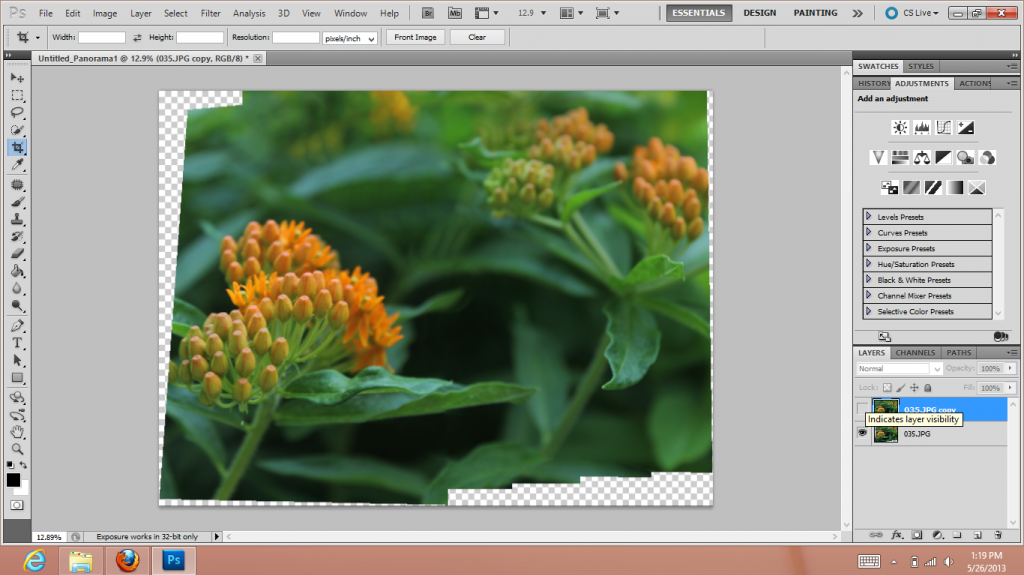
 
Photoshop should have used some black magic and put your collection of photos together, mostly seamlessly.

If you make the same mistake I made-- took too many photos that don't alter greatly-- Photoshop might have just randomly tried to connect your photos. Manually overlap your photos to the best of your abilities-- don't worry, it doesn't have to be perfect-- and then proceed to the next step.

Step Four:

Go to Edit-->Auto-Blend Layers. This will fix any mishaps with the overlapping photos. If you had to manually align your layers, then this should fix all the seams.

Step Five:

Now, on to fixing all those awkward gaps that your photos didn't fill.
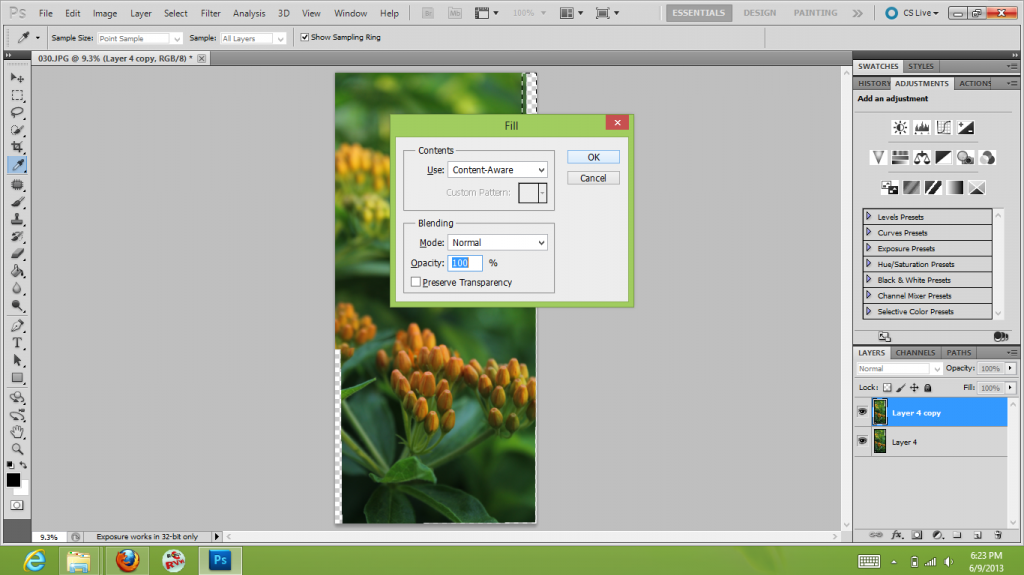

 Using your select tool, grab a section of the transparent area. Go to Edit-->Fill, or click CLT+F5. Make sure that 'Content Aware Fill' is selected. Content Aware Fill is one of my favorite magically Photoshop tricks. Using some mystical algorithm Photoshops looks at the surrounding areas and then predicts what should be in the empty area.

If Photoshop is giving your gibberish when you try to fill something, try to fill a smaller area and work from there. Content aware fill isn't perfect-- sometimes it's just better to crop out the empty areas.

Step Six:

Add any final edits you want to your photos!

Et, volia! You should have a photo that keeps the crisp focus but is more expansive that your first shot.

Examples:
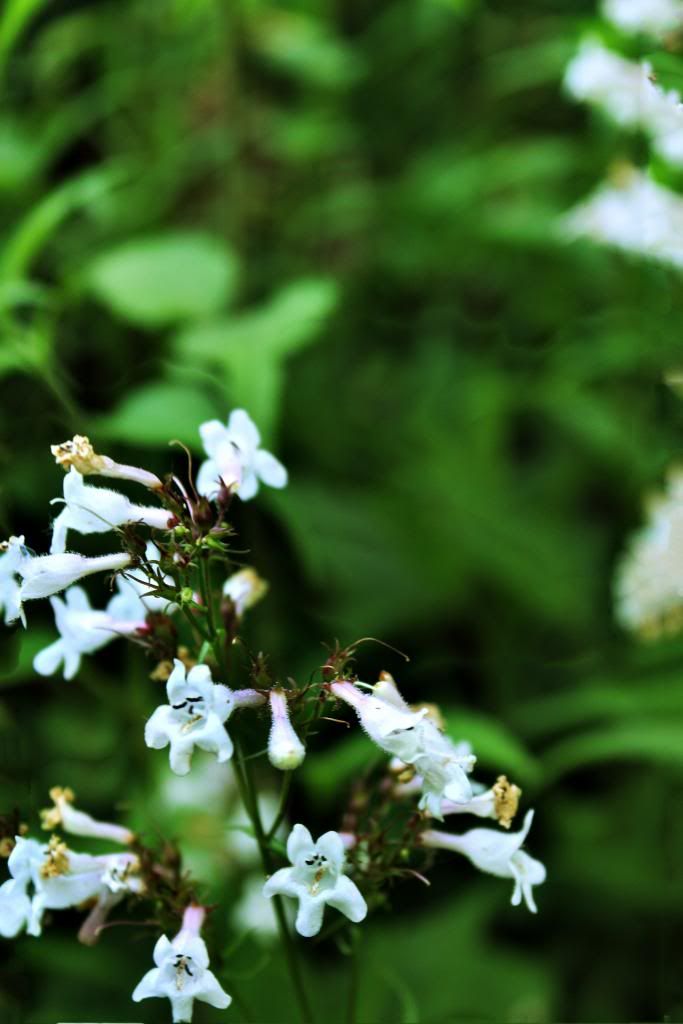


 I loved the way that this one turned out. It doesn't look that large, until you consider how narrow one photo was. It took like eight photos for this-- but that was with me taking far too many photos, so it could have probably done in three or four shots.

There are other ways to do this technique-- for example, using the transform tools rather than the Content aware fill. I just thought I would a little trick for those of you who are like me and don't have a lot of lenses. I also used this technique back when I still had my point-and-shoot.

Thanks for reading!

Wednesday, January 9, 2013

Photoshop Tutorial

I thought I would take a brief detour from crafting to talk about a really cool Photoshop (or Bridge to more exact) technique I just learned about.

It was during the incredibly long eight hour drive back from Mobile that I was flipping through a Photoshop ebook I have on my computer and stumbled upon an interesting technique.

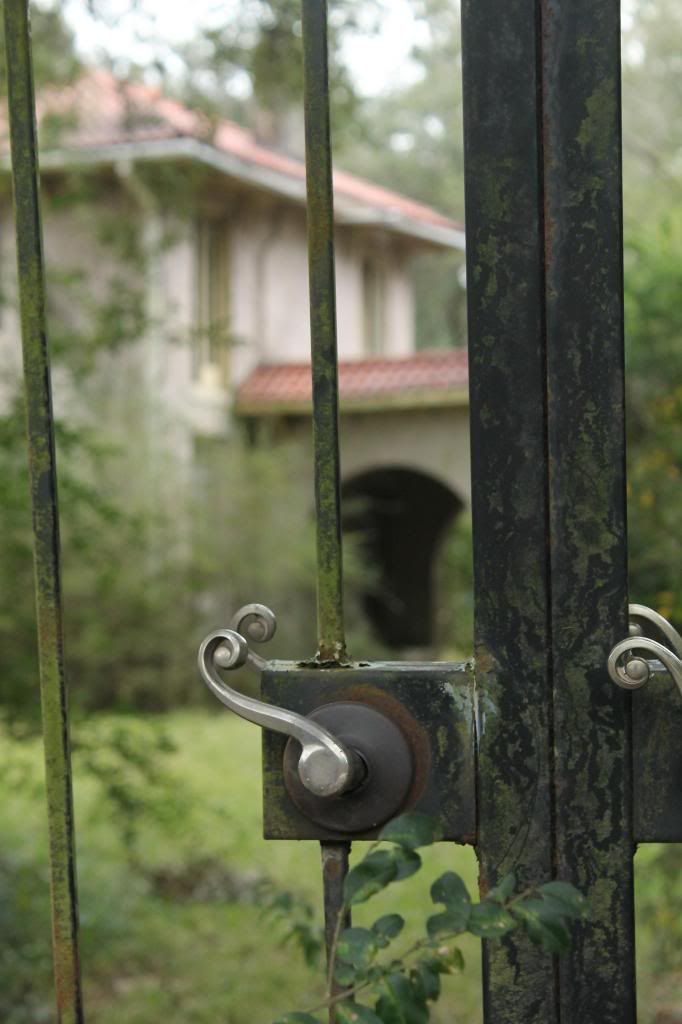
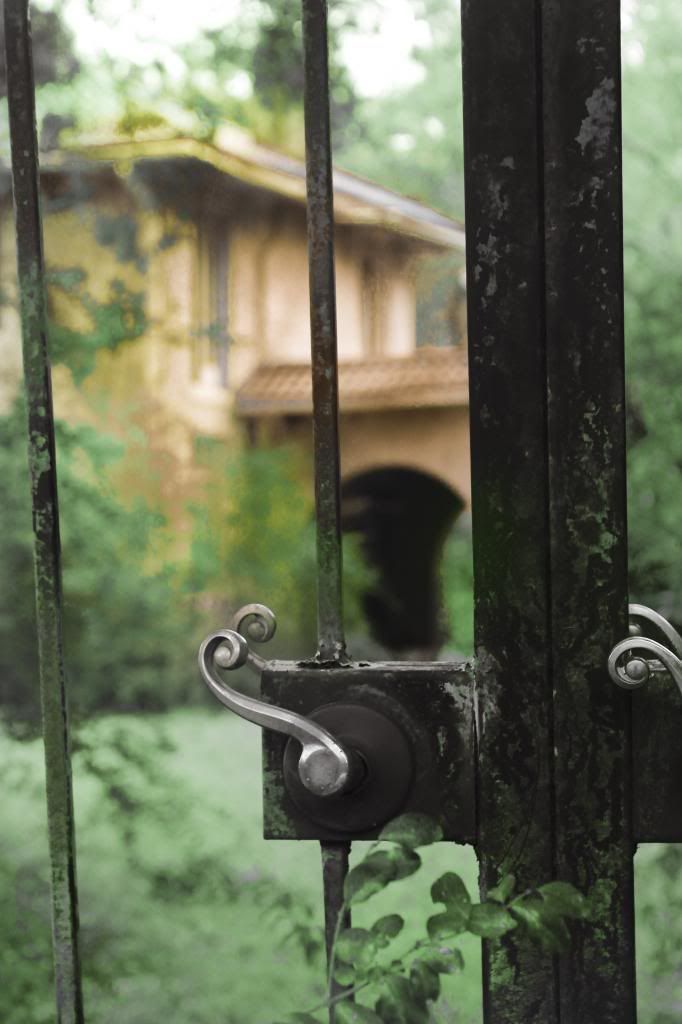
Let me show you a quick before and after and then I'll go into how I did it.

BEFORE:


AFTER:


As a quick side note, the house pictured is a beautiful old house falling into disrepair right off the highway outside of Mobile, Alabama. When we were driving to Mobile we briefly passed it-- getting a quick glimpse of the gorgeous mammoth live oaks that served as living columns before the house. As we were leaving Mobile, we remembered the house, and pulled onto the shoulder to get a better look. I hopped out of the car and snapped a lot of pictures of the old house. My favorite part was probably the huge live oaks in the yard. There was a tall fence that went around the house, broken up by this large iron gate.

Anyway! Back to the wonders of Photoshop.

What I Did:

Open your photo in Adobe Bridge. I'm pretty sure this program comes with Photoshop. It's main feature is Camera Raw, which allows you to quickly make minor edits to your photos and then either load them into Photoshop or save them.

Right click on your photo and open in Camera Raw.

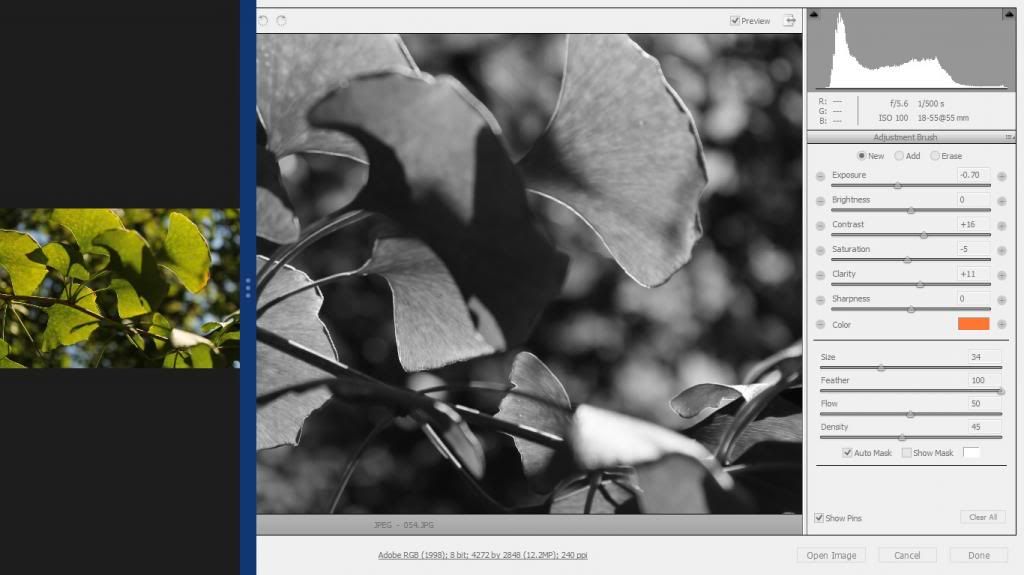
In the main screen, drag the Saturation down to -100. This will make your photo black and white.

Next, hit 'K' or go up to the top of the screen and find the 'Adjustment Brush' icon and click it.

This gives you a brush like feature. On the right panel you have a lot of different options. I have 'Automask' selected. You can keep the color as white (which makes the color icon look like an X) and up the contrast. Then, when you use the brush, you'll be adding contrast wherever you brush.

Cool, huh?

It gets better. Go to the color icon and choose a color. When you start to brush it on, a pin (little circle icon) will appear. This icon is linked to the settings you just choose-- for example, it might be linked to a green color. If you wish to switch colors, go to the top and click 'add', then change your settings and start painting. A new pin will appear-- this one linked to your new color.

If you ever want to go back and edit a specific color, just click on the corresponding pin.


I used to cool spilt screen feature of Windows 8 to remind myself what the color picture looked like. I tried to replicate the colors that the original picture had. This doesn't produce a copy of the picture, as it'll be different from the original. I think the end result looks like recoloring an old black and white photo-- for whatever reason that's what I think when I see the results.

Anyway, for the above picture here's how it turned out :

BEFORE:


AFTER:


Here's another before and after-- the middle shot is the first screenshot I posted.

BEFORE:


AFTER:


I like this result-- it seemed to help with my almost overblown whites.

One more!

BEFORE:


AFTER:


While my favorite one is probably the very first one, I liked how the technique worked on all the photos.

Et, volia! There are a lot of other applications of the Camera Raw brush. You can keep your photo in color, and then brush on some contrast, or brush some extra blue on the sky, or warm up a photo by brushing on some golden yellow tones.

Anyway! I hope this tutorial was helpful-- the technique was definitely a new one for me.

Thanks for reading :)

Friday, November 23, 2012

Wonders of Photoshop

What? Another post? So soon?

Thanks to the break, I actually have photos to post, and time to post them! On today's segment, I have some really cool Photoshop techniques to show off.

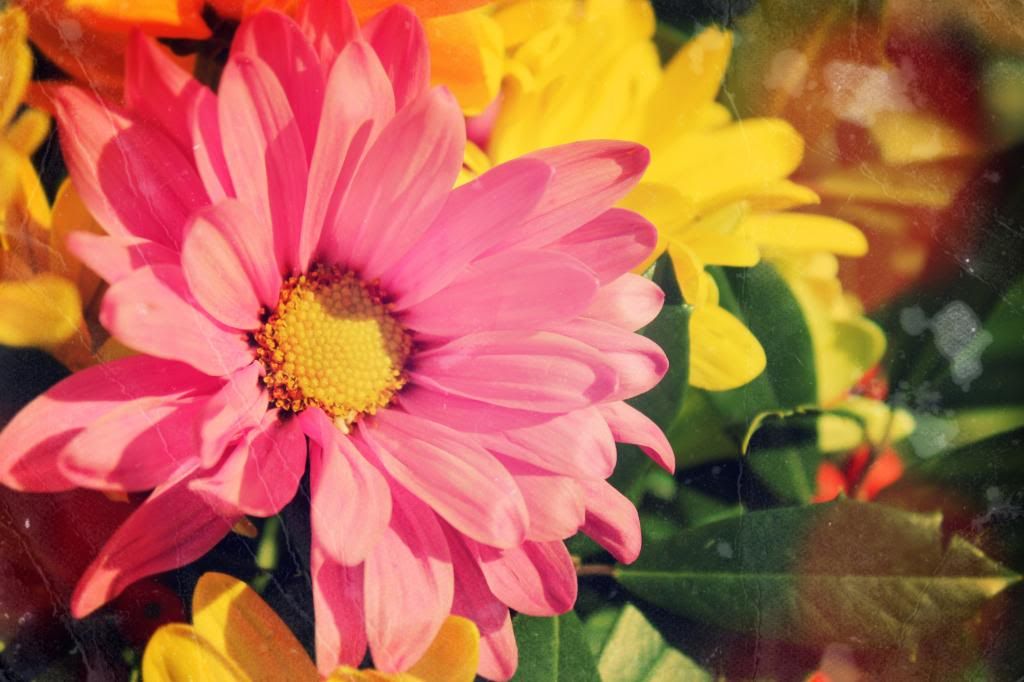
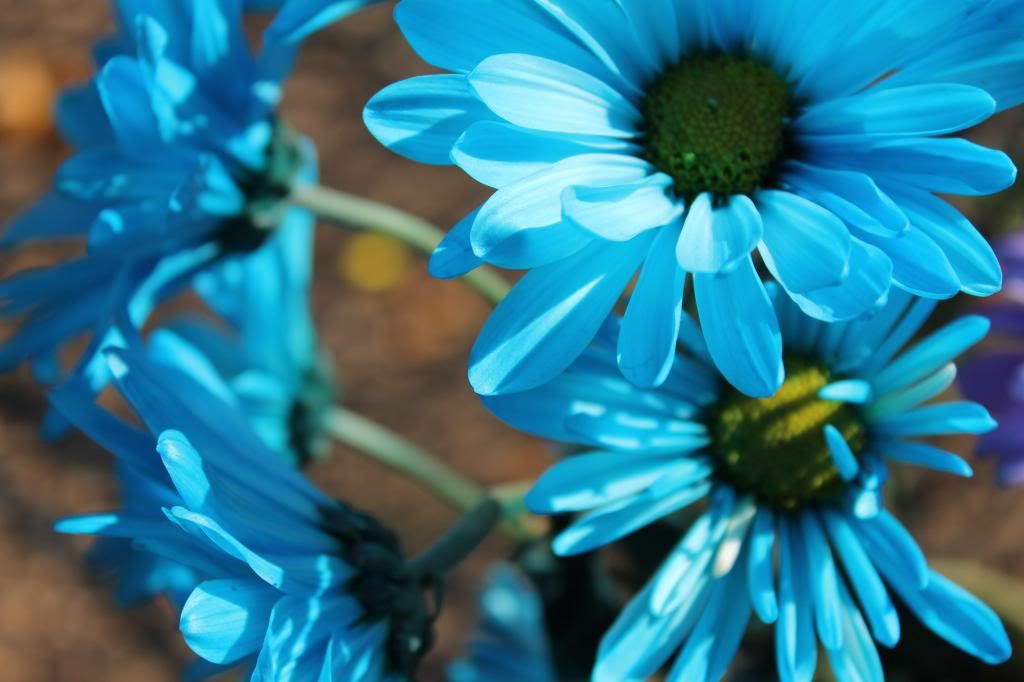
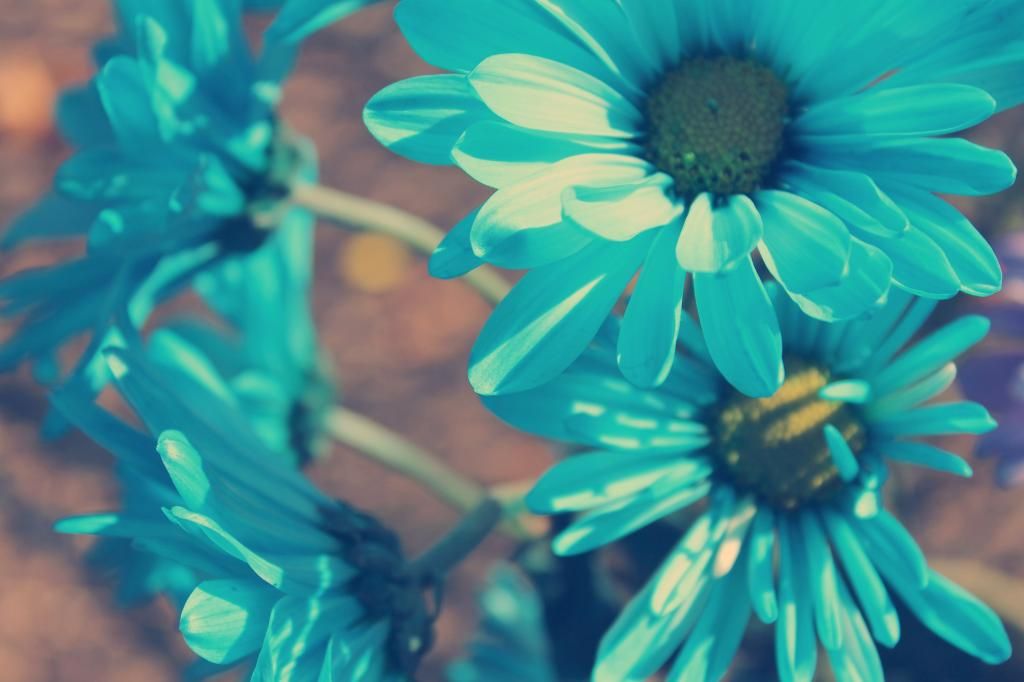
A really big trend in today's amateur photography is making your photo looked like it was taken years ago. Ironically, the way to make this happen is through the newest technology. Instagram is good, but Photoshop is better.

I stumbled upon a really cool tutorial on how to effectively age a photograph.

BEFORE:

 
AFTER:

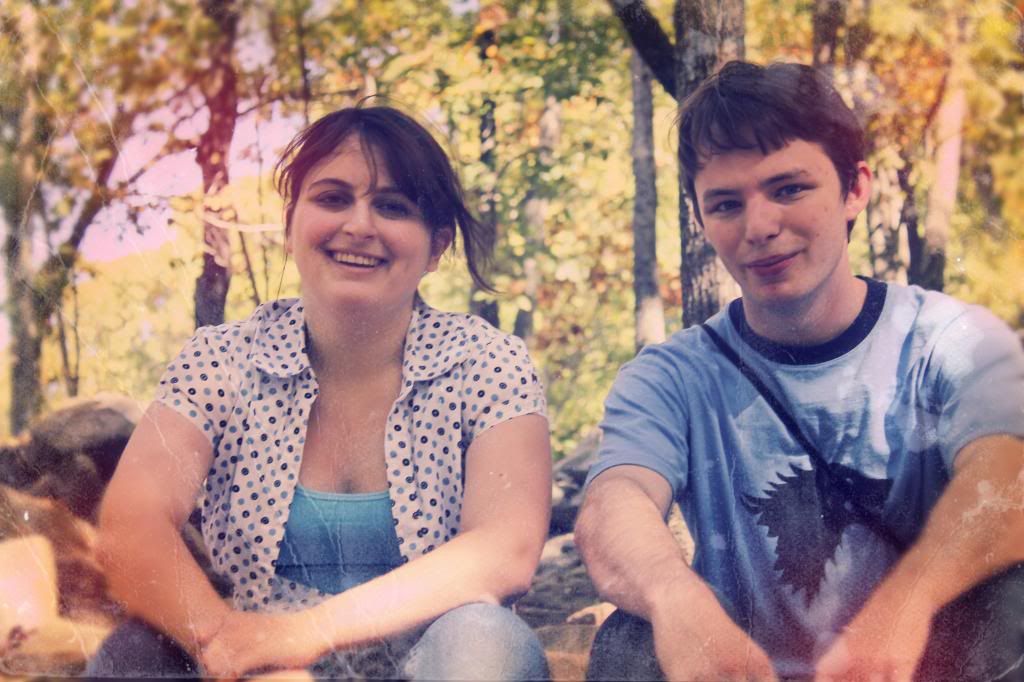
 I've altered the colors, added 'light leaks'-- the red things, and added a texture all in an attempt to make you think that just perhaps, this photo was snapped years ago, and not two days ago.

After learning this technique I just had to try it on other photos.

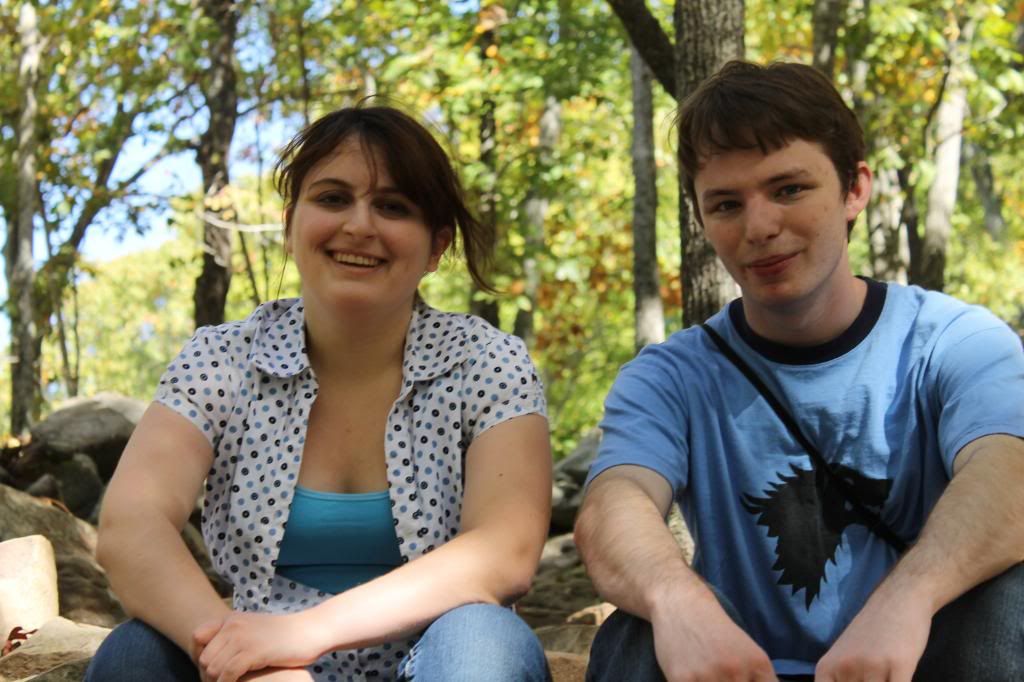
BEFORE:


This picture is from our last trip to Pinnacle. I took a lot of photos but because of the awful mid-day lighting, I didn't post any.

AFTER:

 I liked how this portrait turned out; added interest to the otherwise straightforward picture.

Want me to age your photo? Send me a link; I need more practice ;) 

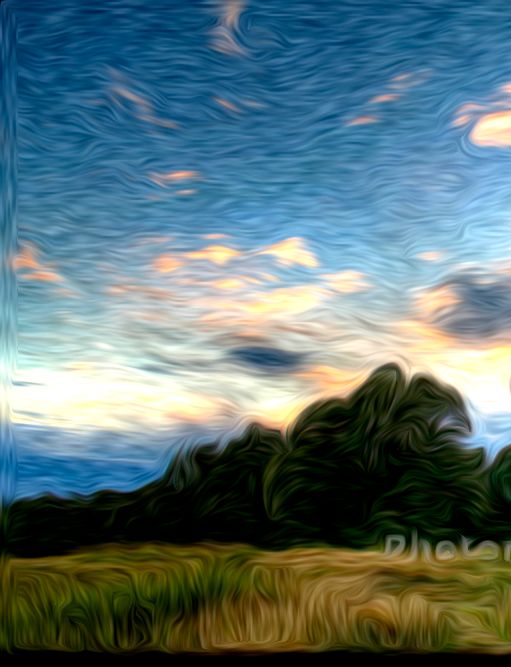
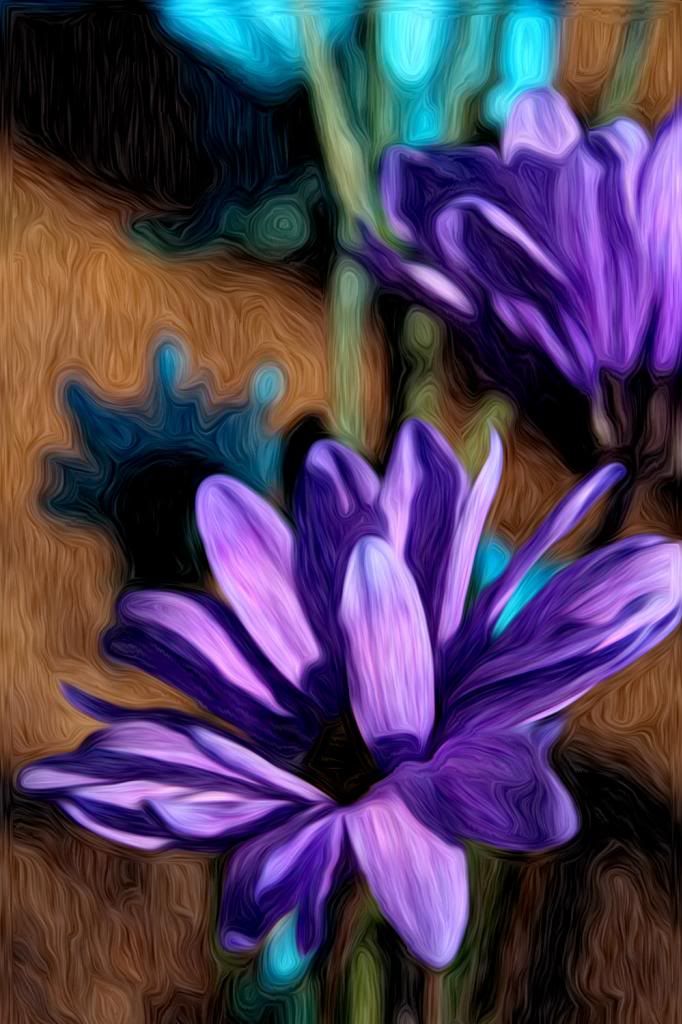
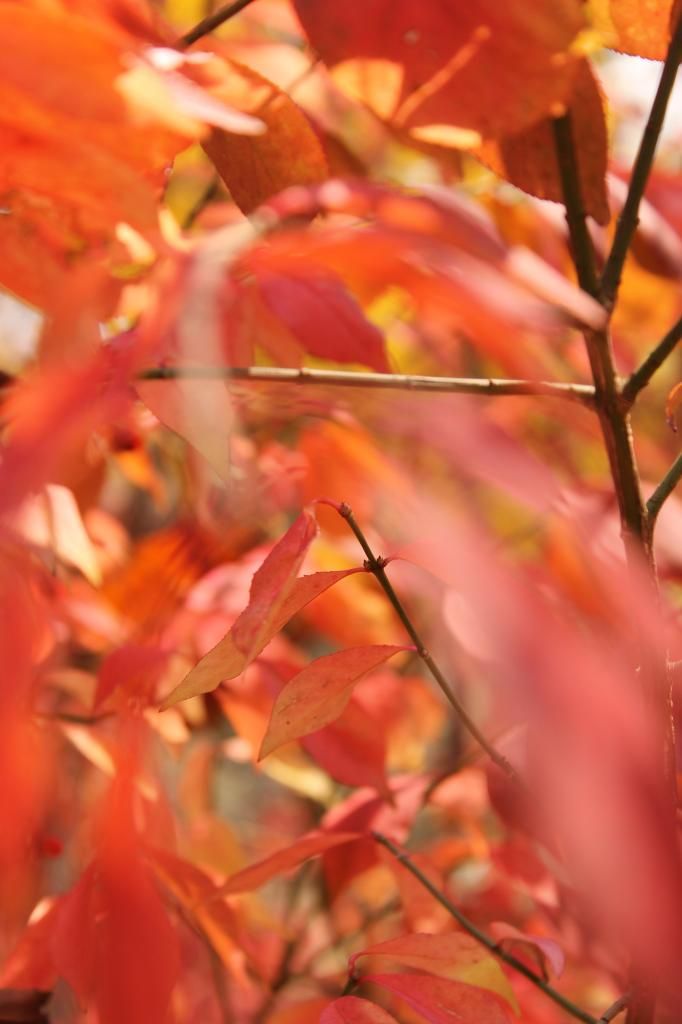
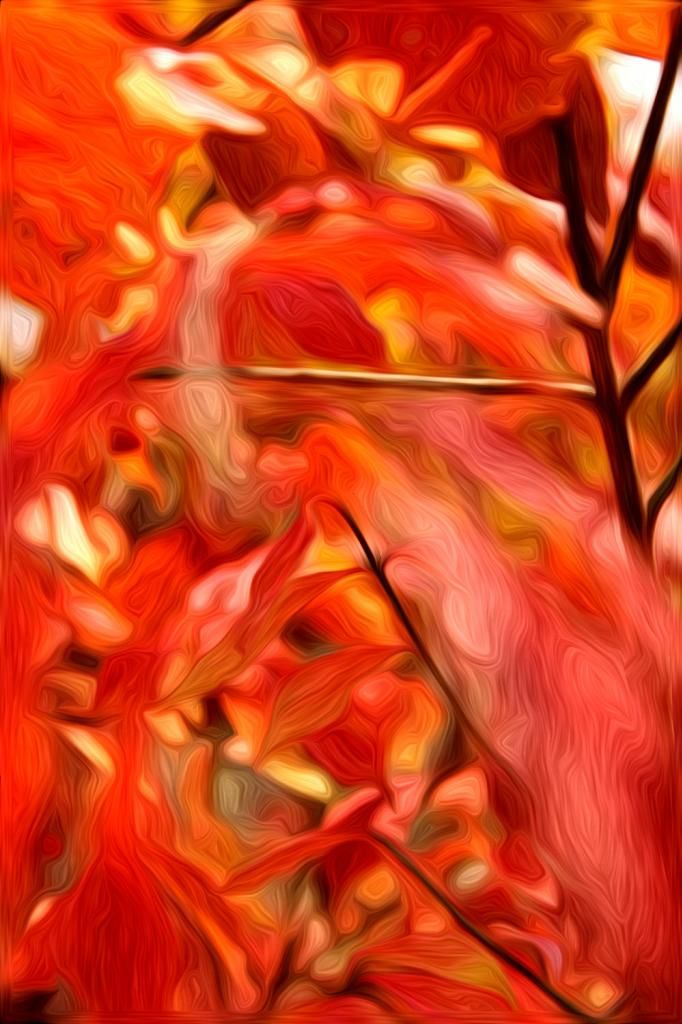
Another technique that I've been obsessing over is the ability to make a photo resemble an oil painting.

Look at those colors! I love how they swirl around each other, giving motion to the photo. I had to download an extra plugin to achieve this oil painting effect but it was free and so worth it! 


See? Pretty awesome effect. And I don't even have to do anything but run a plugin (aka hit a few buttons).

Even though everything's pretty much dead in my yard, doesn't mean that there aren't still plenty of photo opportunities!

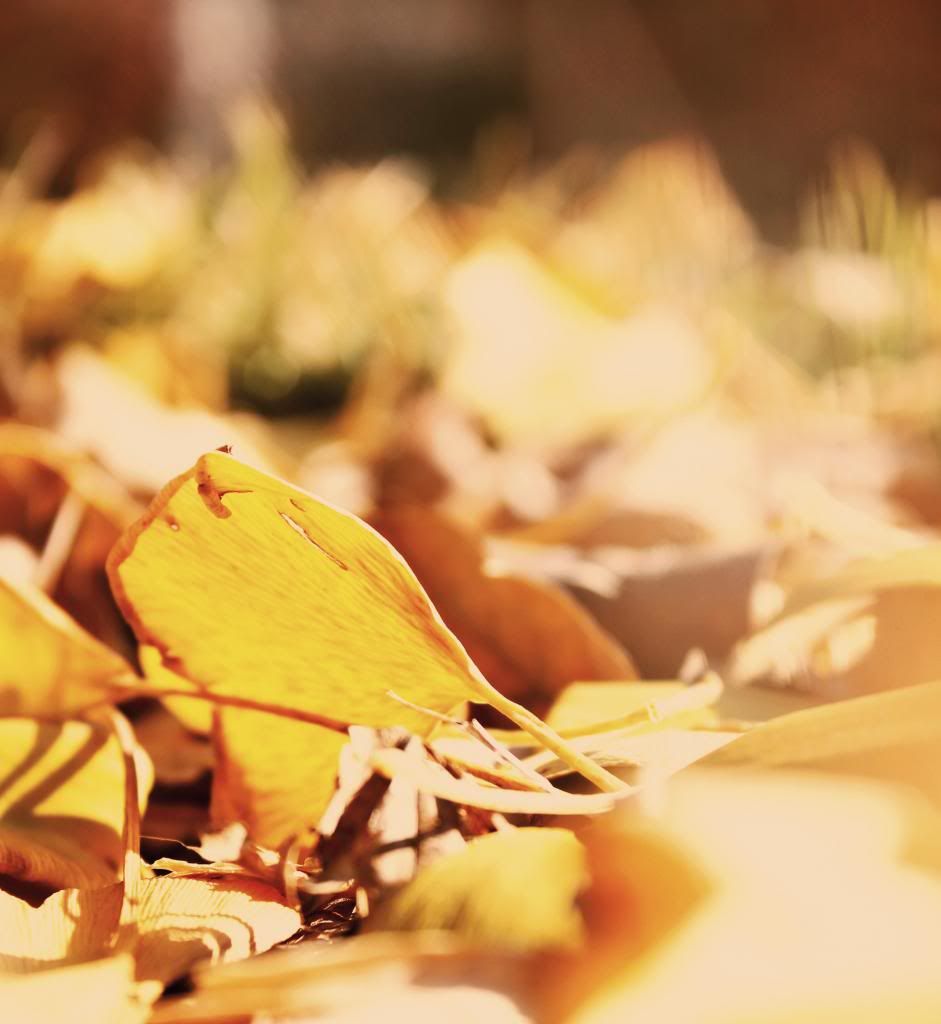
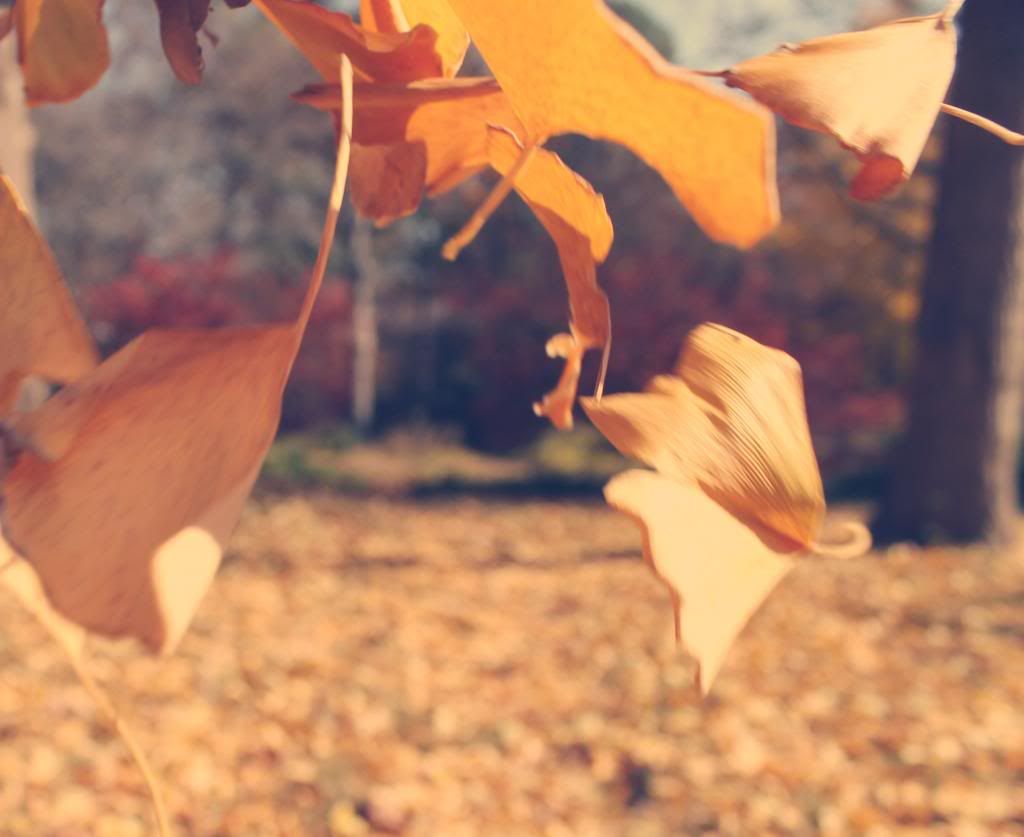
I spent a lot of time trying to get just the perfect picture of falling leaves-- a lot harder than one might expect! I never achieved that perfect image that I had in my head, but I liked this one. I used my new 'Nashville' action on this photo.

Thanksgiving was so much fun! It was great to get together with family, watch football, and eat delicious food. I'm thankful for so many things-- I could do a long blog series ;)

I'm excited for Christmas break not only for the much needed break from stress and school, but also because I have a few craft ideas running around in my head. I can't wait to have time again to be crafty!

Thanks for reading:)

Wednesday, November 21, 2012

Give Thanks

"Give thanks to the Lord, for He is good; His love endures forever." Psalm 107:1

Tuesday afternoon, after my physics test, I quickly packed up and headed home. After the hectic weekend I had, it was nice to be home, where I could take showers without shoes.

Priorities, people. I'm done with dorm living. It just smells too bad. And there's mold. And ants. And that cockroach I found one morning and whimpered until my roommate woke up and took care of it. And the window screen that's broken. And the muggy walls.

Okay, I'll stop now. Safe to say, it's nice to be home. :)

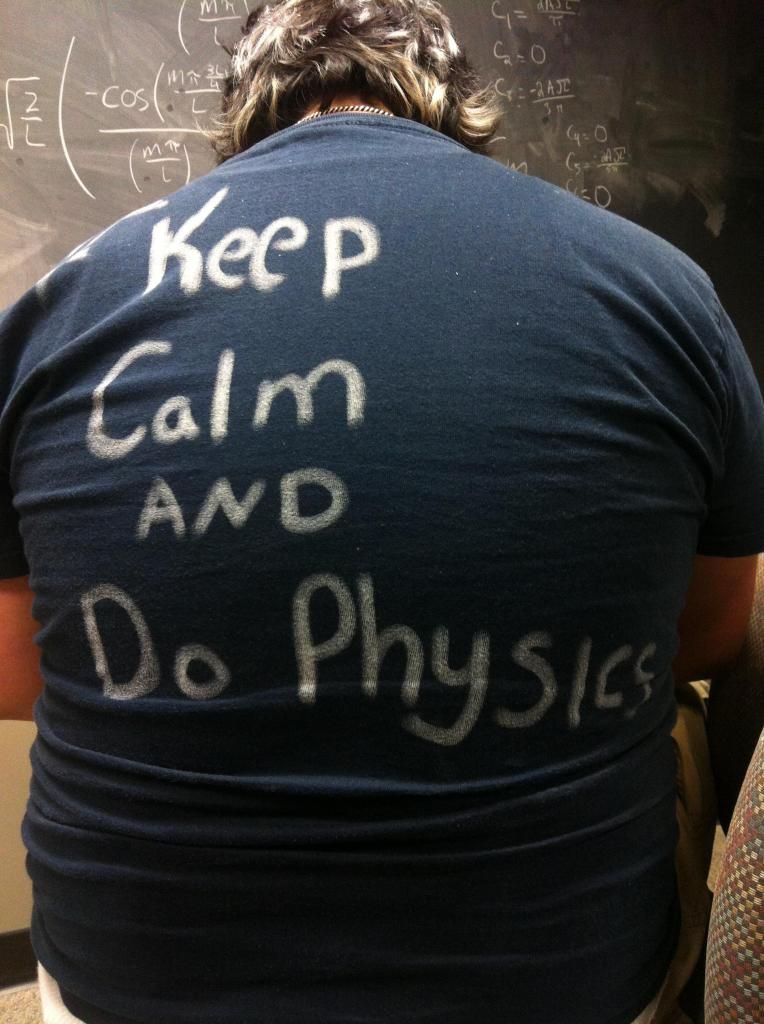
A snapshot of my life before break. It was towards the end of a hellishly annoying physics study session. My next t-shirt project might very well include these words ;)

On a quick side note, I apparently have reached the limit of my photo storage...=| This doesn't mean I will stop blogging though! A little searching and some work later, I've set up a way to put photos on my blog that doesn't use the storage that blogger wants me to pay for.

Ha. As if. I buy clothing at Goodwill, why would I throw money into the internet? I don't make any money on blogging so I won't spend any money on it.

Anyway! This afternoon, after a wonderful amount of sleep, I headed outside. My yard has shifted from the lazy warm colors of autumn to the starkness of winter with surprising speed.

There was, however, a burst of color with the flower arrangement that my mother was working on.

 With my rare expanse of free time that break offered I've been playing around with Photoshop more. I found some cool tutorials. One of them offered to mimic the 'nashville' filter found in Instagram, so I tried my hand at the photo above.

Overall, I really liked the result. It did replicate the faded, blue toned Instagram filter.

Another really cool tutorial I stumbled upon attempted to take a photo and turn it into an oil painting. I really liked the end result, though it's polarizing in how much the photo is actually changed. What do you think?

BEFORE:


AFTER:


 I love how rich the colors appear, and how they all blend together to create a dreamy haze of autumn.

I also stumbled upon this cutie. I snapped my camera up, quickly metering the scene, worried it would flutter away before I could get a picture. I still wish that I had had more time to get a good picture, but it flew away to a more promising flower.

As I have already raved, it is so nice to be on break. I mean, I know I still have to do test corrections, read my Chem textbook, and do some French work, but right now I'm ignoring all that and just relaxing.

I mean look at that face. What a one-eyed cutie ;) This is what I have to welcome me home. Like every other college student, I miss my cats when I'm away so it was nice to see them again.

In other news, I was accepted to study abroad through my school, next step is to apply to ISEP and see what happens :) Fingers crossed that next year I'll be in France!

I'm so excited for Thanksgiving tomorrow. Last year, my parents were in France and most of my relatives were out of town, so Thanksgiving was small affair. This year we're all back together. :)

Thanks for reading and have a wonderful Thanksgiving!

Sunday, November 18, 2012

SoCo 54!

So a couple nights ago I took a break from obsessing over homework to watch some Friends. 

Because I needed some joy in my life, and Friends is kind of the perfect solution. Even though I've seen almost every episode, they still crack me up. Perusing the internet still on my Photoshop kick, I ran across a couple cool editing techniques and decided to try them out. [[I kind of realized that my whole Friends comment is particularly relevant to anything....but I had to share...]]

BEFORE:


 AFTER:

 
I used this tool called Content-Aware Scale, which allowed me to shift the main clover down, toward a better spot. I wasn't thinking about rule of thirds when I took the picture, and the main focus was too much in the center of the photo.

BEFORE:

 So I had thought this photo was kind of boring, which nothing special to it. But, I liked the green colors so I decided to try and spruce it up a bit.

AFTER:

 I still can't decide if I like the black and white edging or not....but I like the overall changes.

One more!

Before:

 I loved the delicate beads of water that were hanging on the spiderweb, but I wanted to make the photo pop more.

AFTER:

 Et, volia! I like the final product, with the heavy contrast and colors.

In other news, the last big party of the semester, SoCo 54 was last night. So much fun! They always go all out on the decorations; I wish I had some pictures of the club scene to show!

The dress was Brittany's-- a perfect 70s dress for the 70s themed party.

As always, getting all dolled up was half the fun.

Anyway, on paper I have two days until Thanksgiving break but it does not feel like that. Before I leave campus I will have finished my differential equations take home test, turned in my Physics assignment, and taken my Physics test....gahhhhh...

As always, thanks for stopping by :)

Thursday, November 15, 2012

Adding Color to Your Life

(Title doesn't make sense? Keep reading! ...it may help...)

It's not like I don't have things to post about. It's not even like I don't have pictures to post.

 Because I do! It's just the crazy, hectic week-long rush to Thanksgiving that has been keeping me somewhat...preoccupied.

Such a lovely place to study! Not so lovely? The fact that this was a Friday...wait maybe Saturday...or Sunday? night. Regardless, I may not remember what day it was, but I do distinctly remember not wanting to work. Who'd guessed. 

Ice skating! It has been far too long since the last time we all went ice skating so last Saturday a couple of us drove to Little Rock to go ice skating. 


We are all obviously very talented.

Except, you know, not. We have yet to master the trick of stopping. I typically find a nice wall to run into; not the best solution. 

It was a blast, despite the many wounds we all suffered-- I can't wait to go back. :D

While I have been buried under a crushing mountain of homework, I've had a few moments here and there to relax. One thing I really miss since coming to college is graphic design. I was never great at it, but it's something that I've always enjoyed. In high school I made posters for various organizations, t-shirt designs for clubs, and lots of photo manipulations. Since college kills any free time, it's been a while since I've messed around in photoshop to do more than minor edits to photos.

Until last night! On the night of the beginning of the stress-full-math-and-physics-packed-killer-weekend/ish/thing, I took a break to de-stress. (why isn't this a word?? if any concept needs to find reality in a string of letters this is it) Something I began interested in during high school was recoloring/editing old black and white photos. I scanned some from my father's childhood, but hadn't had any time to actually work on them.

So! I've messed around with one...I'm not sure how I feel about the result so I'll just post it and see what ya think.

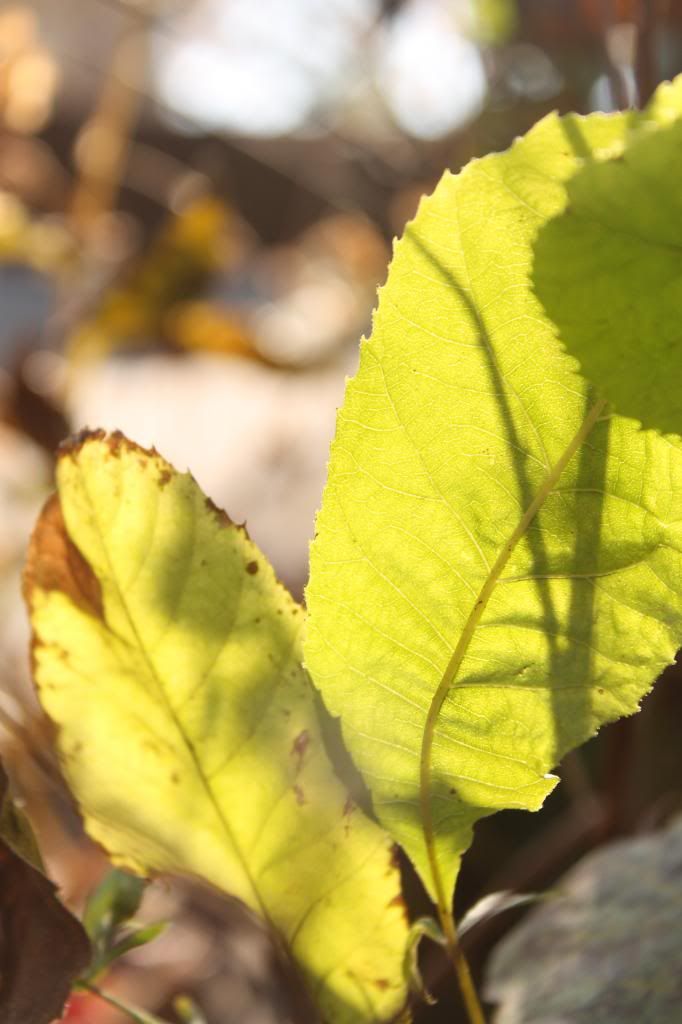
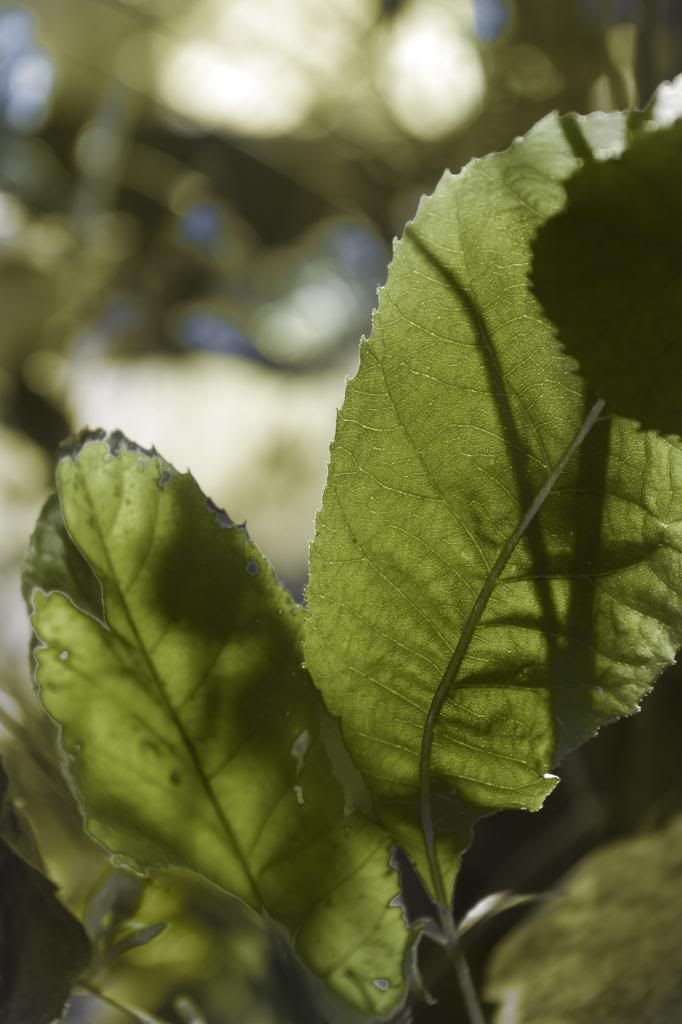
BEFORE:


AFTER:
 

I wasn't wild about how the grass turned out...and I ran out of things to add color to. For example, the house in the background...would just be white most likely, if the picture had color. So while I know conceptually I don't need to add color to the house, it still feels like it needs something. Also, I painted the car blue mostly because I really want some more color in the picture, even if a bright blue car would have possibly been less common.

Anyway! That's just something I do for fun, I'll post more if I have time to edit more. But for now, I'm off to go into self-exile in the library to work on some differential equations!

Thanks for reading :)

Sunday, July 29, 2012

HDR Love

Recently I downloaded a free trial of an HDR software. HDR stands for High Dynamic Range and it refers to a photo (or photos) that attempts to expose for both the shadows and the highlights.

There are several ways to create an HDR photo. One way is to take multiple photos, each exposed for a different element--shadows, highlights,ect. Then, you use a software to merge these multiple photos together.

You see, that requires planning. And I'm not the best on planning. ;) I was just sitting here, messing around with some old photos that I thought would benefit from HDR treatment.

So what I did was take the original photo, decently exposed to catch the colors of the sunset, and make two copies of it, one for the shadows, and one for the highlights.

 This was edited to bring out the dark areas (at the expense of the brights, but that's alright, as I am merging several photos together):
This is the original photo:

Here I slightly edited the photo to bring out the sky:


I threw these three photos into my trial program, Photomatix Pro. I have seen some other photographers use this program, to amazing results. Photoshop does have a HDR function, however I've never had any luck with it.

The final result!

Since it is a trial version, I have all the full functions of the program, but with the limitations of those watermarks. If I really wanted to, I could remove the watermarks in Photoshop, but that just seems, well, rather immoral. If I'm cheap enough to use the trial version, then I'll just have to deal with the watermarks ;)

Another picture! This one didn't turn out as well, but still, I like the result. HDR photos can look over processed, but there are definitely some perks. Here, you still get the color of the grass, and trees, even with the great contrast and color of the sunset.

:) Thanks for reading!